2014/10/20

The Official Version Of iOS 8.1 Upgrade Guide And Function Detailed

Apple has officially released iOS 8.1 system to the user, this upgrade fixes many problems of the old system and the new features Apple Pay began offering mobile payments and iCloud photo gallery and so on. 

Before upgrading, we talk about iOS 8.1 features to the users do not know, as well as how to upgrade this system.

1. What equipment can be upgraded?

iPhone: iPhone 4S, iPhone 5, iPhone 5C, iPhone 5S, (as well as the iPhone 6 and iPhone 6 Plus)

iPad: iPad 2, iPad 3, iPad 4, iPad Air, iPad mini, iPad mini 2, (as well as the iPad Air 2)

iPod: iPod touch 5

Note: Not all features of the device are supported and users experience are the same, the fluency of old equipment may insufficient, or its functions may have shrink, but the main function will be retained. In fact, this is already the norm in the Apple iOS system, if you need to experience the full functionality of all, you need to replace one of the latest equipment.

2 How to Upgrade?

Relatively simple approach is a direct wireless upgrade (OTA), open your iOS devices, choose "Settings"-"Universal"-"software upgrade", but you need to set aside some space, this OTA radio upgrade package is about 100Mb, but it requires 2.2GB of free space, so please remember to left enough space on the device before the upgrade. So, users whoes 8GB or 16GB fuselage space may need to delete something so as to ensure the enough space. If the phone is really no room space, you can also connect your device to the computer, upgrade it with iTunes.


In addition to OTA upgrade, you can also connect your iDevice with computer, upgrade it with iTunes, a new version will pop up after the connection, just update.

Generally speaking, these two methods are not lost information, but we still strongly recommend that you'd better backup data before iOS 8 upgrade, just in case.

Users who has already jailbreak, directly upgrade will cause the device does not start, you need back up all data and connect iTunes to conduct DFU upgrade, but please note that iOS 8.1 still can not jailbreak.

3. Why Upgrade: What are the benefits of iOS 8.1 ?

Relative iOS 8.0.1, iOS 8.1 made ​​a number of improvements, including:

1) Photo Feature

In iOS 8.0.1, Apple film camera functions and photo stream integrated together into "recently added", but because they can not distinguish this folder which photos from the photo stream, those belonging to local, many users have been complaining about. In the latest iOS 8.1, Apple finally turn Photo Stream folder independent, in addition, the delay before shooting the video, you can remind lack of space, this feature is very humane person. 


iCloud photo gallery feature that allows users to use iCloud cloud storage space across multiple device management a single photo, this feature is still in beta, with it, the user can iPhone, iPad, iPod Touch and iCloud.com simultaneously edit the same photo and real-time synchronization save.

Mac computer yet added this feature, Mac version of iCloud photo gallery application on-line in 2015 will be the most at.

2) Messages Feature

iPhone users can now use the iPad and Mac to send & receive SMS and MMS,, but you need other equipment is the latest version, for example, for Mac users, you need to upgrade your Mac to OS X Yosemite.


3) Payment Function

The new-add AirDrop support for Passbook voucher, some countries and regions began to support Apple Pay feature, Apple's head of Cook said that the ApplePay service will change the way we pay.

4) Network Functions

User can choose 2G, 3G or LTE cellular data network.

5) Other New Features

HealthKit health applications can access data in the background.

Added a new option, without setting from Siri, directly set it in "Settings"-"Keyboard"-"Dictation".

Enhance the stability and quality of iPhone 6 and iPhone 6 Plus when used in conjunction with MFi.

6) FAQ Correcting

Solves the problem of the search results may not be displayed

Fixed a bug caused by reading the information can not be marked as read

Fix some problems group sending messages

Fixed the problem that VoiceOver can not coordinate with a third-party keyboard

Fixed the problem that the VoiceOver audio can't be stopped before dialing the next number

Fixed the problem that unusable to use the OS X cache server to update iOS

4. Summary: Worth the upgrade

iOS 8.1 upgrade is the meaning of photos and messages feature improvement, and the restoration of a number of problems. In addition, iOS 8.1 further enhances interoperability iPhone and iPad and Mac computers, for Apple users those who have more than one Apple devices, it is undoubtedly a good news.

Related Tutorials:
How To Recover iPhone Data After iOS 8 Upgrade
This tutorial tells how to recover lost files like contacts, messages, media files and more after updating to iOS 8.

How to Recover Lost iPhone Data after iOS 8 Downgrade

Fail to upgrade your iDevices, what's worse, lost your data after downgrading to previous version, this tutorial tells how to recover lost files like contacts, messages, media files and more after updating to iOS 8.
 
How to Out of Recovery Mode After iOS 8 Upgrade
Stuck at recovery mode after updating your iDevices to iOS 8, this article will tells you how to out of recovery mode and get back your lost data after iOS 8 upgrade.

2014/10/12

14 Hidden Features of iOS 8

Apple iOS 8 system hides some features or tools are not easy to be found, and the average user is not easy to  find, but some are very practical. While many iPhone users have upgraded to the latest iOS 8 operating system, but in fact many of the features of the new system we have not used before. In fact, Apple iOS 8 system also  hides some features or tools are not easy to be found, and the average user is not easy to find, but some are  very practical.

Following, let us look at these 14 hidden features of Apple iOS 8 system.

1. Hide Photos

This is a very clever hidden photo feature. Long accordance piece, select "Hide." After hiding, hidden pictures do not appear in the collection and the year, but is stored in only you can see hidden albums. So no one will know that you are with the iPhone took which photos.

2. SMS Mute

iOS 8 designee may mute receive SMS. Click in the message dialog "Details" mode if you're open, so you can mute  the ring pattern you received a text message nominee. This feature allows you do not want others to see the information is not interesting, and convenient than hide all information.

3. More Text Control

iOS 8 developed more and receive SMS editing functions, including batch delete messages. Long as you select text messages, the "copy" and "more" option. Click on "more", you can select the text messages forwarded to others or delete it.

4. Credit Card Scanning

When you are shopping via the Safari browser, you will find a "scan credit card" option instead of manually entering credit card information. This feature will automatically appear on the keyboard. Once selected, your credit card payments into the phone lens area, it would be safe to enter your personal information.

5. Black And White Mode 

For those mobile phone users want to experience the retro feel into "universal", click on the "Accessibility" open play "grayscale" mode, the phone home screen every software and e-mail will be displayed in black and white.

6. Interactive Reminder

You no longer need to stop the hands of things to reply to messages, mail, calendar reminders and news. When you receive a text message or an e-mail alert sign appears on the top of the screen, and you only need to remind slid down can reply. Yes, this is the newly added system iOS 8 best features.

7. Medical ID

iOS 8 provides a new health medical ID card software HealthKit. In case of emergency, anyone can contact you through this medical emergency contact card. 

This means that any cell phone you do not know who can get the password to your health information or contact  you immediately notify in case of emergency.

8. Self-Timer

The new system is added to the timer in the camera, you can use three seconds or ten seconds to capture accurate  picture of what you want. Before you can develop a timer gracefully phone, so no hand to take pictures. When using a mobile phone camera, top of the screen there will be a timer icon, you can click into three seconds or ten seconds to set the timing.

9. Updated Keyboard 

If you download software from third-party platform keyboard, you can use directly through the main keyboard settings, rather than per-click map icon to replace the language. Specific settings: Settings> General> Keyboard> Edit. 

10. Recover Deleted Photos

If you accidentally delete a picture, do not worry, you can still get it back: Apple added a "recently deleted" album. Photos and video display the number of days remaining before deleting, then permanently deleted. A maximum of 30 days. 

11, E-Mail Reply Notifications 

If you are waiting for an important e-mail, you can set it to a letter reminder. Into your inbox, select an e- mail to the left slide, select More> informed me, so someone replies to e-mail the first time you will be notified. 

12, Apple Account Management

When you want to add personnel to the family share plan, increasing credit card or update Apple account  password, you'll never need to iTunes or the App Store to manage your Apple account. Click Settings, enter iCloud and sign in to your account via e-mail address to complete the connection. 

13, The Application Power Consumption Displays

Into the general> usage> battery usage, you can see that each software over the past 24 hours or the last 7 days of consumption, and understand which applications in the background when not in use turn off to save power. This small act will extend the hours of battery life. 

14, Draft Messages Multitasking


If you are watching an e-mail, but would like to return to the Inbox, you can press the upper part of the information to the decline. But be careful not to prevent too much upward Notifications tab appears. You can also edit multiple drafts. Double-click the bottom of the screen minimize drafts can also see all drafts - rotate the display, and the Safari tab view similar to, and executed by the click or slide open or removed.

Related Tutorials:
How to Recover iPhone after Updating to iOS 8
How to Recover iPhone after iOS 8 Downgrade
How to Out of iPhone Recovery Mode after iOS 8 Upgrade

2014/07/03

How to Recover Lost Data from iPhone after iOS 8 Downgrade

Apple's official line is that you shouldn't use devices you rely on to test these early betas, but we know you. You're a  power user. You want to try out the latest features without waiting. So maybe you installed the software on the iPhone or iPad you use every day before you stopped to consider how unstable and buggy these early betas can be. Want to delete iOS 8 from your iPhone or iPad and reinstall iOS 7 or other early betas? Sadly it's very difficult - but not impossible to downgrade from iOS 8 to iOS 7. Obviously, many users still successfully downgraded their iPhone or iPad from iOS 8.

However, many users many lost theirs data like contacts, messages and more from iPhone or iPad after iOS 8 downgrade, even if they already backup previous. So, is there any ways can restore lost contents from iPhone or other iDevices after  downgrading from iOS 8?


Recover Lost Data from iPhone after iOS 8 Downgrade 

iPad iPhone Recovery or iPad iPhone Recovery Mac enables you to restore your lost data like contacts, text messages, photos, videos and more by extracting data directly out of iPhone iPad and iPod, no matter your data lost due to iOS update, iOS downgrade, jailbreak and other situations. The program is 100% safe with no personal info leaking. In addition, you are allowed to recover your data by extracting from iTunes or iCloud backups.

First you need to download it below. Then install this trial version app to extract the content from iPhone.


Download Mac Version Download Mac Version

Steps to Restore Lost Data from iPhone after iOS 8 Downgrade

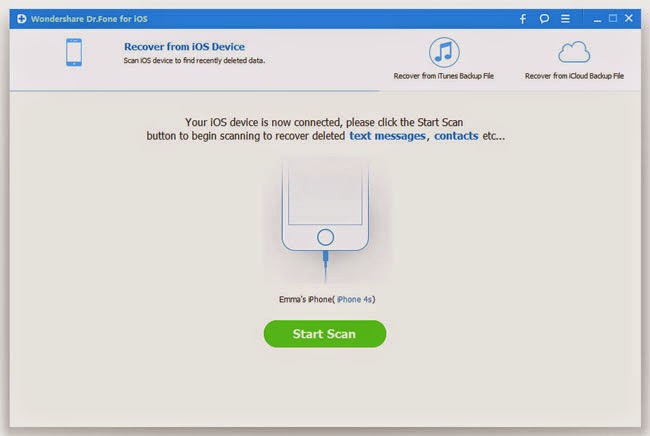
Tutorial 1. Recover Lost iPhone Data Directly from iOS

Step 1. Connect your iPhone/iPad to the Computer


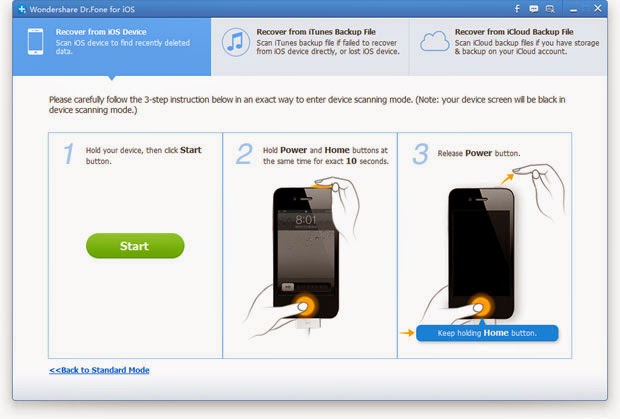
Step 2. Enter DFU Mode to Scan Your Device

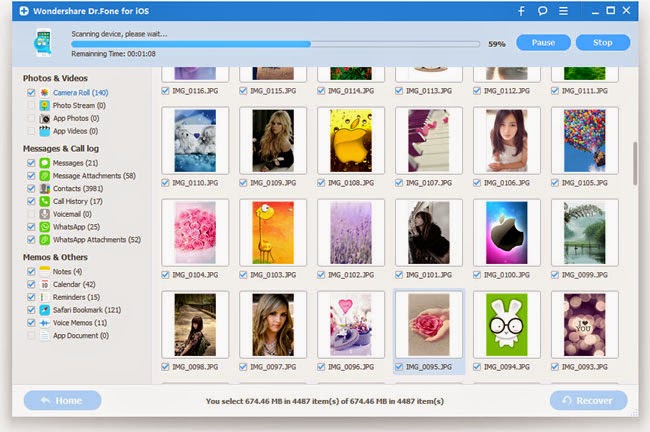
Step 3. Preview and Recover Contents Selectively


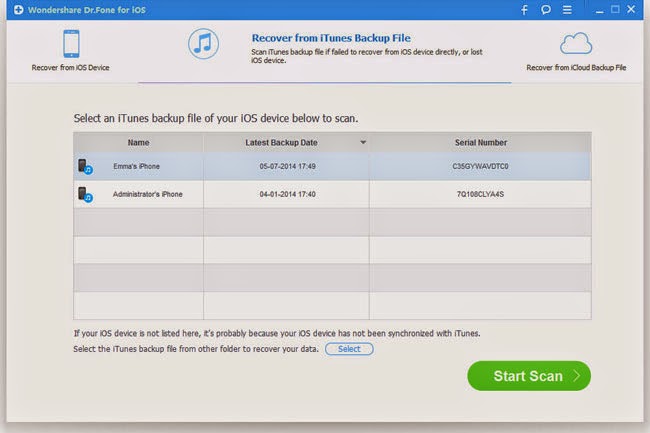
Tutorial 2. Recover Previous Content by Retrieving from iTunes Backup File

Step 1. Pick up the Latest iTunes Backup File


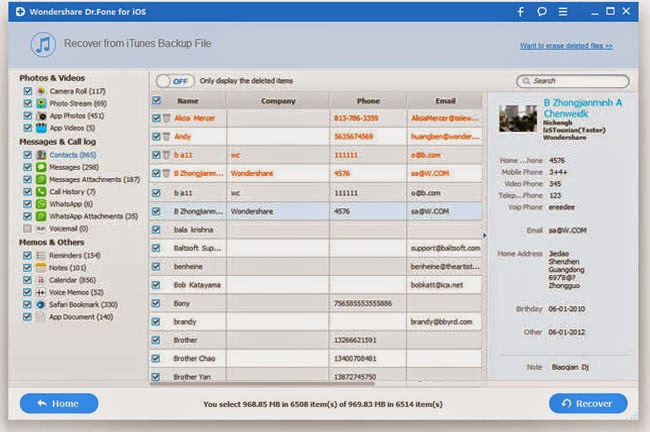
Step 2. Preview and Restore Critical Previous Data


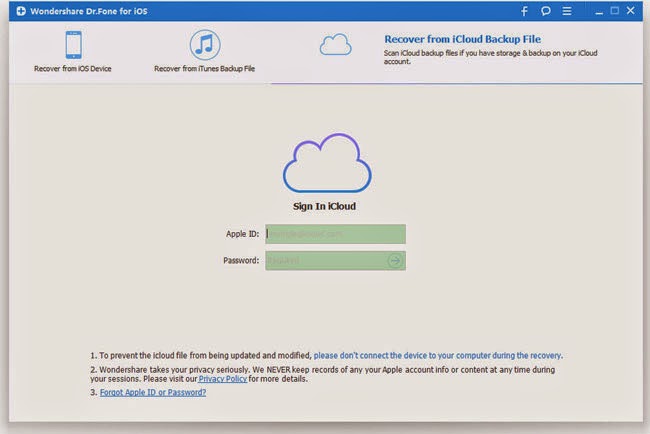
Tutorial 3. Restore iPhone/iPad Files from iCloud Backup File

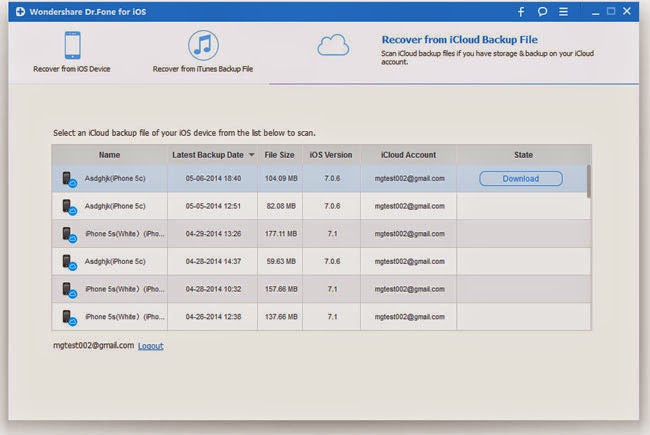
Step 1. Choose the Recovery Mode and Sign in your iCloud


Step 2. Download and Scan your iCloud Backup


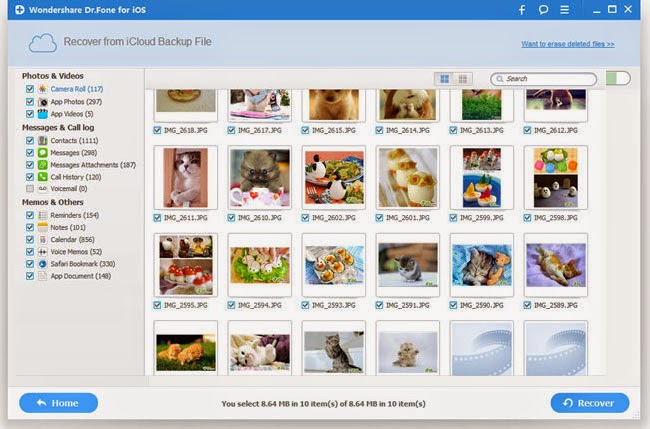
Step 3. Preview and Recover Data from the iCloud Backup


Related Tutorials:
How to Recover iPhone after Updating to iOS 8
How to Recover iPhone SMS after iOS 8 Upgrade
How to Recover iPhone Contacts after iOS 8 Upgrade
How to Out of iPad Recovery Mode after iOS 8 Upgrade

How to Recover iPad after iOS 8 Upgrade
How to Restore iPhone Lost Data on iOS 9

What Files are Supported by iPhone Data Recovery

• Recover Camera Roll (Photo & Video) 
• Recover Photo Library 
• Recover Photo Stream 
• Recover Messages 
• Recover iMessages 
• Recover Contacts 
• Recover Notes 
• Recover Call History 
• Recover WhatsApp History 
• Recover Reminders 
• Recover Voicemail 
• Recover Voice Memo 
• Recover Safari Bookmarks 
• Recover Calendars 
• Recover App Videos 
• Recover App Photos 
• Recover App Documents

2014/07/01

How to Recover Lost Data from iPad after iOS 8 Upgrade


Recover Lost Data from iPad after iOS 8 Upgrade 
"Hi, I updated my iPad Air this morning to iOS 8, and after it failed to update, I tried to install again, after which it went into recovery mode. It looks like the last successful cloud backup was 6 months ago, so I have lost 6 months of the photos and videos of my young baby, and other important files. Photo stream was turned on, so my question is can I  recover lost data from iPad after iOS 8 upgrade? Thanks, Craig!"

It is a good news for Apple's fans to upgrade their devices to iOS 8, as we all known, iOS 8 compatible with iPad 2, iPad 3rd generation, iPad 4th generation, iPad Air, iPad mini, iPad mini with Retina display, therefore, lots of iPad users planning to update theirs iPad to iOS 8, but what's the preparatory work? Backing up the data on your iPad. However, many iPad users still lost their data from iPad after update, if you don't have any backup, what way you can choose is using the iPad Data Recovery.


iPad iPhone Recovery or  iPad iPhone Recovery Mac, which is designed to help iPad users recover all types of data lost or deleted from iPad due to iOS upgrade, jailbreak, factory settings restore, etc. All files on iPad can be recovered with this program, including iPad photos, videos, notes, calendars, voice memos, messages, bookmarks and so on. What's more,  the program providing 3 simple ways to restore data from iPad. So, you can easily recover iPad after iOS 8 upgrade.

Related Tutorials: How to restore iPad after updating to iOS 9


The free trial version below is for you to have a try. Here we take Win version as an example.

Download Mac Version Download Mac Version


3 Effective Methods to Restore Lost Data from iPad after iOS 8 Upgrade

Part 1. Restore Lost Files from your iPad Directly

Step 1. Connect and scan iPad


Step 2. Recover lost data from iPad on iOS 8


Part 2. Recover iPad Data from iTunes Backup Files

Step 1. Choose your iTunes backup and scan to extract it


Step 2. Preview and recover previous data


Part 3. Restore iPad Data from iCloud Backup Files

Step 1. Choose the recovery mode and Sign in your iCloud


Step 2. Download and scan your iCloud backup


Step 3. Preview and recover whatever you want from the iCloud backup


Related Tutorials:
How to Recover Lost iPhone Data after Updating to iOS 8
How to Recover iPhone SMS after iOS 8 Upgrade
How to Recover iPhone Contacts after iOS 8 Upgrade
How to Out of iPad Recovery Mode after iOS 8 Upgrade

2014/06/20

How to Recover Lost iPhone Notes after iOS 8 Update

Restore Lost iPhone Notes after iOS 8 Update
It's very common that upgrade your iDevice to newer or the lastest OS version, iOS 8 upgrade deleted your iPhone notes?  Upgrading from a previous iOS version on iPhone should go smoothly and you should get back the iPhone contents and  settings. However, just like you lost iPhone notes and other important data files after iOS 8 upgrade.

If your iPhone files are missing after updating to iOS 8, please don't continue to use your iPhone, and try using the  iPhone Data Recovery tool to recover your lost iPhone data including videos, photos, text messages, contacts, notes and  other data after updating to iOS 8.

Note: iOS 8 or other OS Upgrade could erase your iPhone contents, you'd better backup your iPhone data before iOS 8  update.

iPhone iPad Recovery tool works better than other software of the same kind. It provides you with  three recovery modes, “to scan your iOS directly for lost data”, “recover from iTunes backup” and “recover from  iCloud backup”. With it, you can recover around 16 types of iOS data including the text files and the media files. For  example, contacts, notes, camera roll, messages, and so forth. The program perfect compatible with iPhone 6S, iPhone Plus, iPhone 6, iPhone  5S/5C, iPhone 4S/4, iPhone 3GS, as well as iPad and iPod.


Download Mac Version Download Mac Version


Top 3 Ways to Recover Lost iPhone Notes after iOS 8 Update

Solution 1: Directly scan and recover data from iPhone

Step 1: Run the program and connect your iPhone


Step 2: Enter the device's scanning mode and scan it


Step 3: Preview and recover deleted iPhone notes 


Solution 2: How to scan and extract iTunes backup to recover iPhone notes

Step 1: Choose iTunes backup and scan it 


Step 2: Recover deleted iPhone data 


Tips: After recover data and save them on your computer, you can transfer the restored data or previous backups from computer to iPhone again with iPhone to Computer Transfer tool. Read more from: transfer data from PC to iPhone

Solution 3: How to scan and extract iCloud backup to recover iPhone notes

Step 1: Choose the recovery mode and sign in your iCloud 


Step 2: Download and scan your iCloud backup 


Step 3: Preview and recover whatever you want from the iCloud backup


Related Tutorials:
How to Recover Lost iPhone Data after Updating to iOS 8
How to Recover iPhone SMS after iOS 8 Upgrade
How to Recover iPhone Contacts after iOS 8 Upgrade
How to Out of iPhone Recovery Mode after iOS 8 Upgrade
How to Restore iPhone Note on iOS 9

2014/06/10

How to Recover Lost iPhone Contacts After iOS 8/9 Upgrade

The long-waited iOS 8 was finally unveiled to the world by Apple on June 2 at its WWDC 2014. Although there are still a few months to go before the biggest iOS release officially launches to the public, the beta version of iOS 8 has already made available to developers. We know you are just eager to upgrade this new iOS 8 on your iPhone. But history has told us that accident always happens during iOS update. So in order to make your iOS 8 update more smooth, you'd better take a glance at the following tips before upgrading to iOS 8.

1. Figure Out Which iPhone Models Would Be Able to Run iOS 8
Firstly, you should be aware of the iOS 8 compatibility with different iPhone models. Only iPhone 4S, 5, 5S and later devices are able to run iOS 8. If you are holding iPhone 4 and older versions, you can stop there and forget about the upgrading thing, however, you can think about updating them to iOS 7.
Update iPhone to iOS 8
2. Learn How to Recover Lost iPhone Data After Updating to iOS 9/8.4
Many users have reported the problem of iPhone contacts loss after upgrading to the latest iOS in the past. So another important step to take before iOS 8 upgrade would be getting into the habit of saving your important files on iPhone and learning how to recover lost iPhone contact and other data after iOS 8 upgrade.

Here we recommend iPhone Contents Recovery or  iPhone Contents Recovery for Mac, a professional data recovery software for iPhone to backup iPhone data including contacts, text messages, photos, videos, call history, notes, calendar, Safari bookmarks, WhatsApp data and more before iOS 8 upgrade, the recovery program applys to iPhone 3GS, 4, 4S, 5, 5S, 5C, and even the coming iPhone 6, as well as the iPad and iPod.

Free download a trial version and have a try!


Download Mac Version Download Mac Version     

Note: Don't use your device and sync your device with iTunes after you lost data from it. Any operation on your device can generate new data, which can overwrite your lost data and make it unrecoverable.


Steps To Recover Lost iPhone Contacts After iOS 8 Upgrade

Solution 1: Directly scan and recover data from iPhone

Step 1. Connect iPhone to computer


Launch the program on your computer and connect iPhone. Choose "Recover from iOS Device" to brings up the recovery window.

direct recovery lost contacts from iPhone

iPhone 5S/5/4S users simply click "Start Scan" button to scan your iPhone. iPhone 4 and 3GS users simply follow the instructions shown on the picture below to get into the scanning mode.


Step 2. Recover lost contacts on your iPhone running iOS 8

iPhone Data Recovery will scan your iPhone to find all the existing and lost data. You are able to find and preview the target files easily by clicking the specific categories such as Contacts Messages, Photos, Videos, Memos, Calls, etc on the left side. Mark those files you want to backup or recover and click "Recover" button to export them to your computer.

If you can't find your lost contacts or other data via Solution 1, please don't worrry first, iPhone Data Recovery provides another two ways to recover your lost or deleted iPhone data from backup files.


Solution 2: Scan and extract iTunes backup to recover iPhone contacts

Step 1: Choose iTunes backup and scan it 
Step 2: Recover deleted iPhone data 
Tips: After recover data and save them on your computer, you can transfer the restored data from computer to iPhone again with iPhone to Computer transfer tool

Extract to recover lost iPhone contacts from iTunes backup

Solution 3: Scan and extract iCloud backup to recover iPhone cocntacts


Step 1: Choose the recovery mode and Sign in your iCloud 
Step 2: Download and scan your iCloud backup

Scan and extract iCloud backup to recover iPhone cocntacts
Step 3: Preview and recover whatever you want from the iCloud backup

Related Tutorials:

How to Recover Messages from iPhone After iOS 8 Upgrade
How to Fix iPhone Stuck in Recovery Mode After iOS 8 Upgrade

Tips: As the same, the deleted data can be recovered with this iPhone Data Recovery, therefore, if you planning to resell, donate, recycle your iPhone, please remember to permanent delete all data from iPhone, to permanently erase your iPhone without recovery, we recommend you to use the iPhone Data Wiper.