If you have been using a jailbreaked iPhone or iPad, even if you upgrade your device to iOS 8 or other lastest version, jailbreaking your iPhone iPad on iOS 8 is just the truth sooner or later.
Why we need to jailbreak iPhone or iPad?
iPhone iPad jailbreak means opening up user's operating authority, so that the user has permission to read and write system files. Only after a successful jailbreak, the iPhone iPad file system is in read-write mode, so that you can install and run the third-party programs which have not been officially certified.
What we use to jailbreak iPhone iPad on iOS 8?
We've some great news for jailbreakers. The Pangu team has just released a jailbreak for iOS 8 – iOS 8.1, making it the first jailbreak released for iOS 8 or later.
Device compatibility
According to Pangu's website, Pangu for iOS 8 – iOS 8.1 is compatible with the following devices:
iPod: iPod touch 5G
iPhone: iPhone 4s, iPhone 5, iPhone 5s, iPhone 5c, iPhone 6, iPhone 6 Plus
iPad: iPad mini, iPad mini 2, iPad mini 3, iPad, iPad Air, iPad Air 2 (we’re not entirely sure about the iPad compatibility here)
Why is there no Cydia at present?
Because of the many changes iOS8 system, Cydia and many plug-dependent Substrate framework can not be used in iOS8. So Pangu provides developers require some basic environmental and SSH and other plug-in version 1.0 jailbreak, the convenience Cydia author and other developers can quickly modify their code against iOS8. After the completion of compatible Cydia, Pangu will release updates to integrate Cydia. So, Pangu jailbreak (iOS8) version 1.0 is ready for strict jailbreak developer version.
The preparation for the jailbreak
Step 1. Backup iPhone iPad data to computer
No matter update, downgrade or jailbreak your iDevice, it's may case the data losing from your iPhone iPad, so you'd better backup the data from your iPhone iPad to computer with iTunes or other 3rd party software, such as the iPhone Data Recovery, Mobile Transfer or iPhone Data Manager.
Related Tutorial: How to Backup iPhone iPad to Computer
Step 2. Download and install the Pangu jailbreaked tool on your computer
Please click to download: Pangu
Step 3. Please turn off the screen lock before the jailbreak and close the "Find My iPhone" feature in iCloud settings.
1) Tap "Setting" on the device's home screen > tap "iCloud" > turn off "Find My iPhone".
2) Tap "Setting" on the device's home screen > tap "Touch ID and Password" and close it.
How to Jailbreak iPhone iPad Running iOS 8 with the Pangu Jailbreak Tool
Step 1. Launch the Pangu on your computer and connect your iPhone or iPad with the computer.
Step 2. When your iPhone or iPad is detected, click on "Start Jailbreak" (开始越狱).
After that, the program will automatically jailbreak your iDevice, please wait a moment patiently.
Step 3. When the jailbreak is finished, your iPhone will restart, please deblock your device and follow the steps to setting it.
Related Tutorial:
How to Recover Lost Data after iOS 8 Update
How to Restore Lost iPhone Data after Jailbreak
If you find that data losing from your iPhone iPad after jailbreak on iOS 8, please don't worry, click this tutorial to read the detail steps to get back your lost data with ease.
3 simple but reliable methods to recover lost data like contacts, messages, videos, photos, call history, notes, Calendar, Safari bookmarks and more from iPhone after updating to iOS 8
2014/10/27
2014/10/20
The Official Version Of iOS 8.1 Upgrade Guide And Function Detailed
Before upgrading, we talk about iOS 8.1 features to the users do not know, as well as how to upgrade this system.
1. What equipment can be upgraded?
iPhone: iPhone 4S, iPhone 5, iPhone 5C, iPhone 5S, (as well as the iPhone 6 and iPhone 6 Plus)
iPad: iPad 2, iPad 3, iPad 4, iPad Air, iPad mini, iPad mini 2, (as well as the iPad Air 2)
iPod: iPod touch 5
Note: Not all features of the device are supported and users experience are the same, the fluency of old equipment may insufficient, or its functions may have shrink, but the main function will be retained. In fact, this is already the norm in the Apple iOS system, if you need to experience the full functionality of all, you need to replace one of the latest equipment.
2 How to Upgrade?
Relatively simple approach is a direct wireless upgrade (OTA), open your iOS devices, choose "Settings"-"Universal"-"software upgrade", but you need to set aside some space, this OTA radio upgrade package is about 100Mb, but it requires 2.2GB of free space, so please remember to left enough space on the device before the upgrade. So, users whoes 8GB or 16GB fuselage space may need to delete something so as to ensure the enough space. If the phone is really no room space, you can also connect your device to the computer, upgrade it with iTunes.
In addition to OTA upgrade, you can also connect your iDevice with computer, upgrade it with iTunes, a new version will pop up after the connection, just update.
Generally speaking, these two methods are not lost information, but we still strongly recommend that you'd better backup data before iOS 8 upgrade, just in case.
Users who has already jailbreak, directly upgrade will cause the device does not start, you need back up all data and connect iTunes to conduct DFU upgrade, but please note that iOS 8.1 still can not jailbreak.
3. Why Upgrade: What are the benefits of iOS 8.1 ?
Relative iOS 8.0.1, iOS 8.1 made a number of improvements, including:
1) Photo Feature
In iOS 8.0.1, Apple film camera functions and photo stream integrated together into "recently added", but because they can not distinguish this folder which photos from the photo stream, those belonging to local, many users have been complaining about. In the latest iOS 8.1, Apple finally turn Photo Stream folder independent, in addition, the delay before shooting the video, you can remind lack of space, this feature is very humane person.
iCloud photo gallery feature that allows users to use iCloud cloud storage space across multiple device management a single photo, this feature is still in beta, with it, the user can iPhone, iPad, iPod Touch and iCloud.com simultaneously edit the same photo and real-time synchronization save.
Mac computer yet added this feature, Mac version of iCloud photo gallery application on-line in 2015 will be the most at.
2) Messages Feature
iPhone users can now use the iPad and Mac to send & receive SMS and MMS,, but you need other equipment is the latest version, for example, for Mac users, you need to upgrade your Mac to OS X Yosemite.
3) Payment Function
The new-add AirDrop support for Passbook voucher, some countries and regions began to support Apple Pay feature, Apple's head of Cook said that the ApplePay service will change the way we pay.
4) Network Functions
User can choose 2G, 3G or LTE cellular data network.
5) Other New Features
HealthKit health applications can access data in the background.
Added a new option, without setting from Siri, directly set it in "Settings"-"Keyboard"-"Dictation".
Enhance the stability and quality of iPhone 6 and iPhone 6 Plus when used in conjunction with MFi.
6) FAQ Correcting
Solves the problem of the search results may not be displayed
Fixed a bug caused by reading the information can not be marked as read
Fix some problems group sending messages
Fixed the problem that VoiceOver can not coordinate with a third-party keyboard
Fixed the problem that the VoiceOver audio can't be stopped before dialing the next number
Fixed the problem that unusable to use the OS X cache server to update iOS
4. Summary: Worth the upgrade
iOS 8.1 upgrade is the meaning of photos and messages feature improvement, and the restoration of a number of problems. In addition, iOS 8.1 further enhances interoperability iPhone and iPad and Mac computers, for Apple users those who have more than one Apple devices, it is undoubtedly a good news.
Related Tutorials:
How To Recover iPhone Data After iOS 8 Upgrade
This tutorial tells how to recover lost files like contacts, messages, media files and more after updating to iOS 8.
How to Recover Lost iPhone Data after iOS 8 Downgrade
Fail to upgrade your iDevices, what's worse, lost your data after downgrading to previous version, this tutorial tells how to recover lost files like contacts, messages, media files and more after updating to iOS 8.
How to Out of Recovery Mode After iOS 8 Upgrade
Stuck at recovery mode after updating your iDevices to iOS 8, this article will tells you how to out of recovery mode and get back your lost data after iOS 8 upgrade.

2014/10/12
14 Hidden Features of iOS 8
Apple iOS 8 system hides some features or tools are not easy to be found, and the average user is not easy to find, but some are very practical. While many iPhone users have upgraded to the latest iOS 8 operating system, but in fact many of the features of the new system we have not used before. In fact, Apple iOS 8 system also hides some features or tools are not easy to be found, and the average user is not easy to find, but some are very practical.
Following, let us look at these 14 hidden features of Apple iOS 8 system.
1. Hide Photos
This is a very clever hidden photo feature. Long accordance piece, select "Hide." After hiding, hidden pictures do not appear in the collection and the year, but is stored in only you can see hidden albums. So no one will know that you are with the iPhone took which photos.
2. SMS Mute
iOS 8 designee may mute receive SMS. Click in the message dialog "Details" mode if you're open, so you can mute the ring pattern you received a text message nominee. This feature allows you do not want others to see the information is not interesting, and convenient than hide all information.
3. More Text Control
iOS 8 developed more and receive SMS editing functions, including batch delete messages. Long as you select text messages, the "copy" and "more" option. Click on "more", you can select the text messages forwarded to others or delete it.
4. Credit Card Scanning
When you are shopping via the Safari browser, you will find a "scan credit card" option instead of manually entering credit card information. This feature will automatically appear on the keyboard. Once selected, your credit card payments into the phone lens area, it would be safe to enter your personal information.
5. Black And White Mode
For those mobile phone users want to experience the retro feel into "universal", click on the "Accessibility" open play "grayscale" mode, the phone home screen every software and e-mail will be displayed in black and white.
6. Interactive Reminder
You no longer need to stop the hands of things to reply to messages, mail, calendar reminders and news. When you receive a text message or an e-mail alert sign appears on the top of the screen, and you only need to remind slid down can reply. Yes, this is the newly added system iOS 8 best features.
7. Medical ID
iOS 8 provides a new health medical ID card software HealthKit. In case of emergency, anyone can contact you through this medical emergency contact card.
This means that any cell phone you do not know who can get the password to your health information or contact you immediately notify in case of emergency.
8. Self-Timer
The new system is added to the timer in the camera, you can use three seconds or ten seconds to capture accurate picture of what you want. Before you can develop a timer gracefully phone, so no hand to take pictures. When using a mobile phone camera, top of the screen there will be a timer icon, you can click into three seconds or ten seconds to set the timing.
9. Updated Keyboard
If you download software from third-party platform keyboard, you can use directly through the main keyboard settings, rather than per-click map icon to replace the language. Specific settings: Settings> General> Keyboard> Edit.
10. Recover Deleted Photos
If you accidentally delete a picture, do not worry, you can still get it back: Apple added a "recently deleted" album. Photos and video display the number of days remaining before deleting, then permanently deleted. A maximum of 30 days.
11, E-Mail Reply Notifications
If you are waiting for an important e-mail, you can set it to a letter reminder. Into your inbox, select an e- mail to the left slide, select More> informed me, so someone replies to e-mail the first time you will be notified.
12, Apple Account Management
When you want to add personnel to the family share plan, increasing credit card or update Apple account password, you'll never need to iTunes or the App Store to manage your Apple account. Click Settings, enter iCloud and sign in to your account via e-mail address to complete the connection.
13, The Application Power Consumption Displays
Into the general> usage> battery usage, you can see that each software over the past 24 hours or the last 7 days of consumption, and understand which applications in the background when not in use turn off to save power. This small act will extend the hours of battery life.
14, Draft Messages Multitasking
If you are watching an e-mail, but would like to return to the Inbox, you can press the upper part of the information to the decline. But be careful not to prevent too much upward Notifications tab appears. You can also edit multiple drafts. Double-click the bottom of the screen minimize drafts can also see all drafts - rotate the display, and the Safari tab view similar to, and executed by the click or slide open or removed.
Related Tutorials:
How to Recover iPhone after Updating to iOS 8
How to Recover iPhone after iOS 8 Downgrade
How to Out of iPhone Recovery Mode after iOS 8 Upgrade
Following, let us look at these 14 hidden features of Apple iOS 8 system.
1. Hide Photos
This is a very clever hidden photo feature. Long accordance piece, select "Hide." After hiding, hidden pictures do not appear in the collection and the year, but is stored in only you can see hidden albums. So no one will know that you are with the iPhone took which photos.
2. SMS Mute
iOS 8 designee may mute receive SMS. Click in the message dialog "Details" mode if you're open, so you can mute the ring pattern you received a text message nominee. This feature allows you do not want others to see the information is not interesting, and convenient than hide all information.
3. More Text Control
iOS 8 developed more and receive SMS editing functions, including batch delete messages. Long as you select text messages, the "copy" and "more" option. Click on "more", you can select the text messages forwarded to others or delete it.
4. Credit Card Scanning
When you are shopping via the Safari browser, you will find a "scan credit card" option instead of manually entering credit card information. This feature will automatically appear on the keyboard. Once selected, your credit card payments into the phone lens area, it would be safe to enter your personal information.
5. Black And White Mode
For those mobile phone users want to experience the retro feel into "universal", click on the "Accessibility" open play "grayscale" mode, the phone home screen every software and e-mail will be displayed in black and white.
6. Interactive Reminder
You no longer need to stop the hands of things to reply to messages, mail, calendar reminders and news. When you receive a text message or an e-mail alert sign appears on the top of the screen, and you only need to remind slid down can reply. Yes, this is the newly added system iOS 8 best features.
7. Medical ID
iOS 8 provides a new health medical ID card software HealthKit. In case of emergency, anyone can contact you through this medical emergency contact card.
This means that any cell phone you do not know who can get the password to your health information or contact you immediately notify in case of emergency.
8. Self-Timer
The new system is added to the timer in the camera, you can use three seconds or ten seconds to capture accurate picture of what you want. Before you can develop a timer gracefully phone, so no hand to take pictures. When using a mobile phone camera, top of the screen there will be a timer icon, you can click into three seconds or ten seconds to set the timing.
9. Updated Keyboard
If you download software from third-party platform keyboard, you can use directly through the main keyboard settings, rather than per-click map icon to replace the language. Specific settings: Settings> General> Keyboard> Edit.
10. Recover Deleted Photos
If you accidentally delete a picture, do not worry, you can still get it back: Apple added a "recently deleted" album. Photos and video display the number of days remaining before deleting, then permanently deleted. A maximum of 30 days.
11, E-Mail Reply Notifications
If you are waiting for an important e-mail, you can set it to a letter reminder. Into your inbox, select an e- mail to the left slide, select More> informed me, so someone replies to e-mail the first time you will be notified.
12, Apple Account Management
When you want to add personnel to the family share plan, increasing credit card or update Apple account password, you'll never need to iTunes or the App Store to manage your Apple account. Click Settings, enter iCloud and sign in to your account via e-mail address to complete the connection.
13, The Application Power Consumption Displays
Into the general> usage> battery usage, you can see that each software over the past 24 hours or the last 7 days of consumption, and understand which applications in the background when not in use turn off to save power. This small act will extend the hours of battery life.
14, Draft Messages Multitasking
Related Tutorials:
How to Recover iPhone after Updating to iOS 8
How to Recover iPhone after iOS 8 Downgrade
How to Out of iPhone Recovery Mode after iOS 8 Upgrade
2014/07/03
How to Recover Lost Data from iPhone after iOS 8 Downgrade
Apple's official line is that you shouldn't use devices you rely on to test these early betas, but we know you. You're a power user. You want to try out the latest features without waiting. So maybe you installed the software on the iPhone or iPad you use every day before you stopped to consider how unstable and buggy these early betas can be. Want to delete iOS 8 from your iPhone or iPad and reinstall iOS 7 or other early betas? Sadly it's very difficult - but not impossible to downgrade from iOS 8 to iOS 7. Obviously, many users still successfully downgraded their iPhone or iPad from iOS 8.
However, many users many lost theirs data like contacts, messages and more from iPhone or iPad after iOS 8 downgrade, even if they already backup previous. So, is there any ways can restore lost contents from iPhone or other iDevices after downgrading from iOS 8?
iPad iPhone Recovery or iPad iPhone Recovery Mac enables you to restore your lost data like contacts, text messages, photos, videos and more by extracting data directly out of iPhone iPad and iPod, no matter your data lost due to iOS update, iOS downgrade, jailbreak and other situations. The program is 100% safe with no personal info leaking. In addition, you are allowed to recover your data by extracting from iTunes or iCloud backups.
First you need to download it below. Then install this trial version app to extract the content from iPhone.
Steps to Restore Lost Data from iPhone after iOS 8 Downgrade
Tutorial 1. Recover Lost iPhone Data Directly from iOS
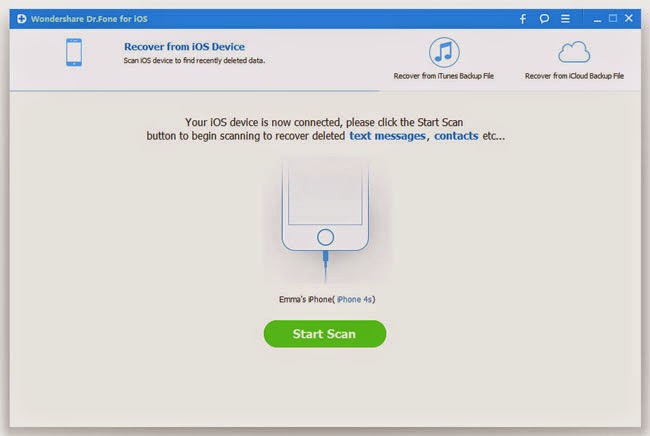
Step 1. Connect your iPhone/iPad to the Computer
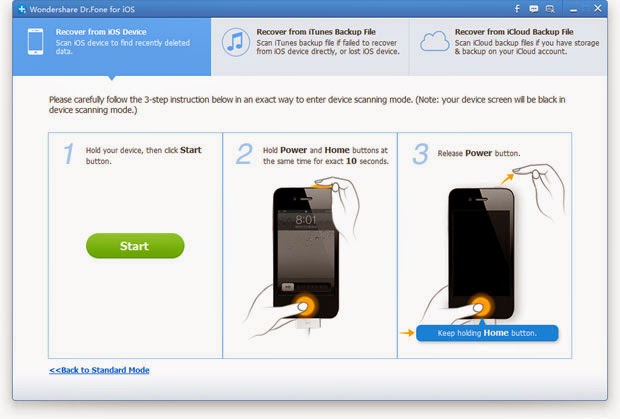
Step 2. Enter DFU Mode to Scan Your Device
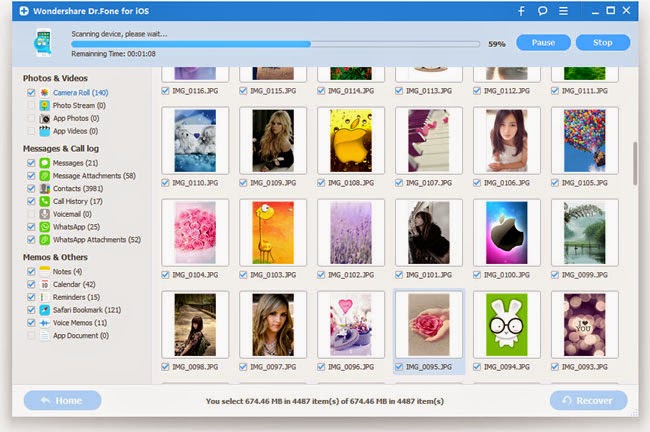
Step 3. Preview and Recover Contents Selectively
Tutorial 2. Recover Previous Content by Retrieving from iTunes Backup File
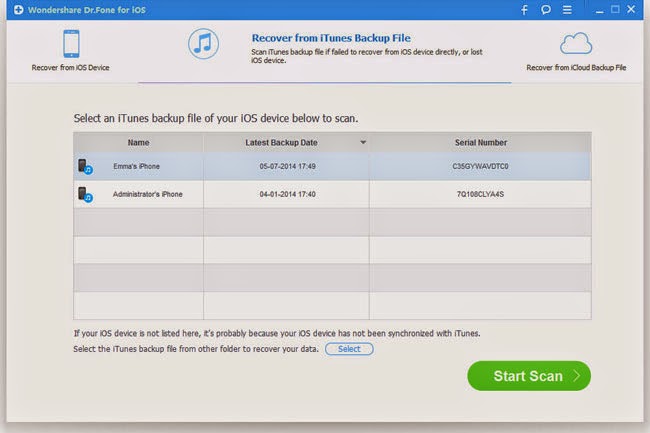
Step 1. Pick up the Latest iTunes Backup File
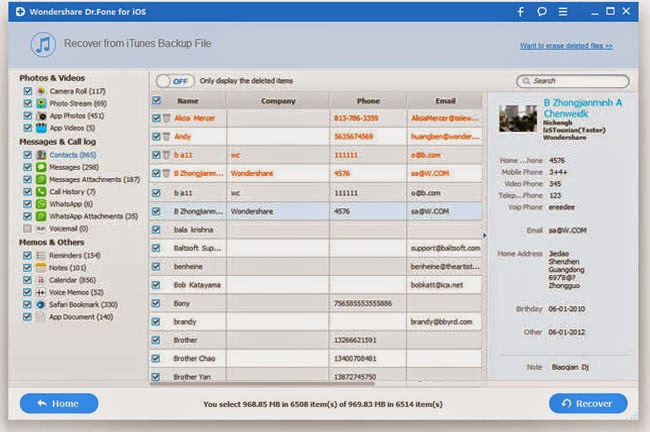
Step 2. Preview and Restore Critical Previous Data
Tutorial 3. Restore iPhone/iPad Files from iCloud Backup File
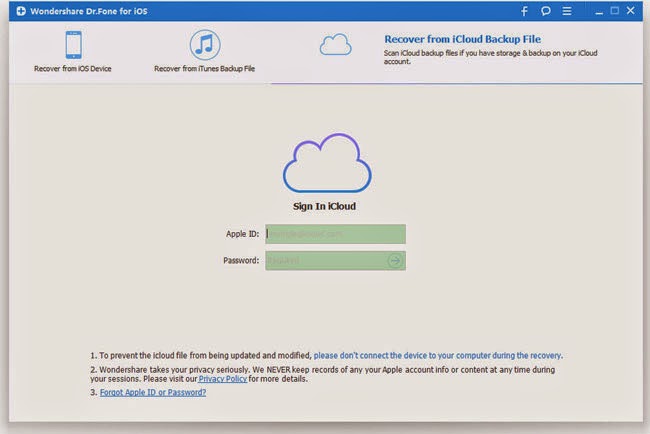
Step 1. Choose the Recovery Mode and Sign in your iCloud
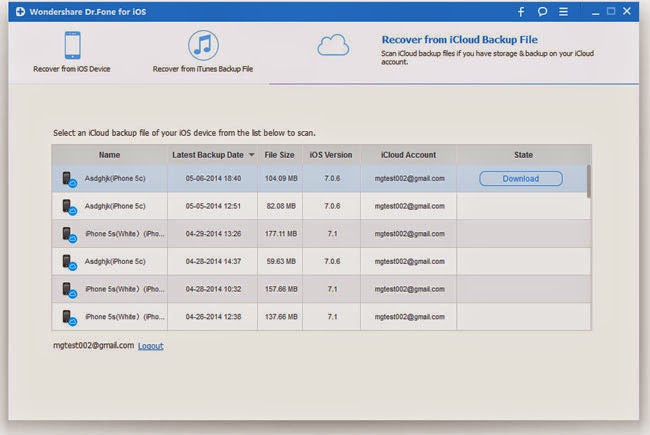
Step 2. Download and Scan your iCloud Backup
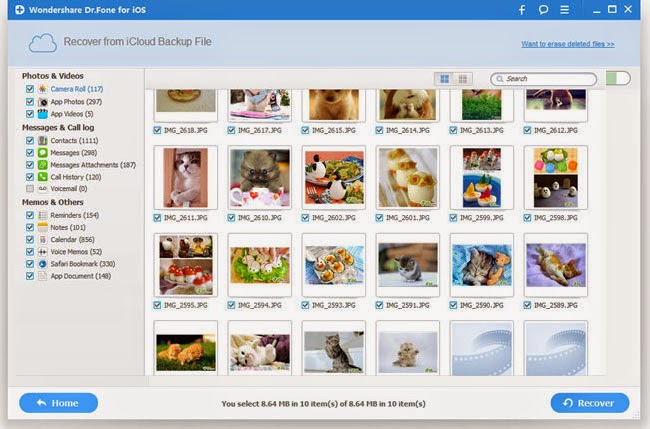
Step 3. Preview and Recover Data from the iCloud Backup
Related Tutorials:
How to Recover iPhone after Updating to iOS 8
How to Recover iPhone SMS after iOS 8 Upgrade
How to Recover iPhone Contacts after iOS 8 Upgrade
How to Out of iPad Recovery Mode after iOS 8 Upgrade
How to Recover iPad after iOS 8 Upgrade
How to Restore iPhone Lost Data on iOS 9
What Files are Supported by iPhone Data Recovery
• Recover Camera Roll (Photo & Video)
• Recover Photo Library
• Recover Photo Stream
• Recover Messages
• Recover iMessages
• Recover Contacts
• Recover Notes
• Recover Call History
• Recover WhatsApp History
• Recover Reminders
• Recover Voicemail
• Recover Voice Memo
• Recover Safari Bookmarks
• Recover Calendars
• Recover App Videos
• Recover App Photos
• Recover App Documents
However, many users many lost theirs data like contacts, messages and more from iPhone or iPad after iOS 8 downgrade, even if they already backup previous. So, is there any ways can restore lost contents from iPhone or other iDevices after downgrading from iOS 8?
![]() |
Recover Lost Data from iPhone after iOS 8 Downgrade |
iPad iPhone Recovery or iPad iPhone Recovery Mac enables you to restore your lost data like contacts, text messages, photos, videos and more by extracting data directly out of iPhone iPad and iPod, no matter your data lost due to iOS update, iOS downgrade, jailbreak and other situations. The program is 100% safe with no personal info leaking. In addition, you are allowed to recover your data by extracting from iTunes or iCloud backups.
First you need to download it below. Then install this trial version app to extract the content from iPhone.
Steps to Restore Lost Data from iPhone after iOS 8 Downgrade
Tutorial 1. Recover Lost iPhone Data Directly from iOS
Step 1. Connect your iPhone/iPad to the Computer

Step 2. Enter DFU Mode to Scan Your Device
Step 3. Preview and Recover Contents Selectively

Tutorial 2. Recover Previous Content by Retrieving from iTunes Backup File
Step 1. Pick up the Latest iTunes Backup File

Step 2. Preview and Restore Critical Previous Data

Tutorial 3. Restore iPhone/iPad Files from iCloud Backup File
Step 1. Choose the Recovery Mode and Sign in your iCloud

Step 2. Download and Scan your iCloud Backup

Step 3. Preview and Recover Data from the iCloud Backup

Related Tutorials:
How to Recover iPhone after Updating to iOS 8
How to Recover iPhone SMS after iOS 8 Upgrade
How to Recover iPhone Contacts after iOS 8 Upgrade
How to Out of iPad Recovery Mode after iOS 8 Upgrade
How to Recover iPad after iOS 8 Upgrade
How to Restore iPhone Lost Data on iOS 9
What Files are Supported by iPhone Data Recovery
• Recover Camera Roll (Photo & Video)
• Recover Photo Library
• Recover Photo Stream
• Recover Messages
• Recover iMessages
• Recover Contacts
• Recover Notes
• Recover Call History
• Recover WhatsApp History
• Recover Reminders
• Recover Voicemail
• Recover Voice Memo
• Recover Safari Bookmarks
• Recover Calendars
• Recover App Videos
• Recover App Photos
• Recover App Documents
2014/07/01
How to Recover Lost Data from iPad after iOS 8 Upgrade
![]() |
Recover Lost Data from iPad after iOS 8 Upgrade |
It is a good news for Apple's fans to upgrade their devices to iOS 8, as we all known, iOS 8 compatible with iPad 2, iPad 3rd generation, iPad 4th generation, iPad Air, iPad mini, iPad mini with Retina display, therefore, lots of iPad users planning to update theirs iPad to iOS 8, but what's the preparatory work? Backing up the data on your iPad. However, many iPad users still lost their data from iPad after update, if you don't have any backup, what way you can choose is using the iPad Data Recovery.
iPad iPhone Recovery or iPad iPhone Recovery Mac, which is designed to help iPad users recover all types of data lost or deleted from iPad due to iOS upgrade, jailbreak, factory settings restore, etc. All files on iPad can be recovered with this program, including iPad photos, videos, notes, calendars, voice memos, messages, bookmarks and so on. What's more, the program providing 3 simple ways to restore data from iPad. So, you can easily recover iPad after iOS 8 upgrade.
Related Tutorials: How to restore iPad after updating to iOS 9
The free trial version below is for you to have a try. Here we take Win version as an example.
3 Effective Methods to Restore Lost Data from iPad after iOS 8 Upgrade
Part 1. Restore Lost Files from your iPad Directly
Step 1. Connect and scan iPad

Step 2. Recover lost data from iPad on iOS 8

Part 2. Recover iPad Data from iTunes Backup Files
Step 1. Choose your iTunes backup and scan to extract it

Step 2. Preview and recover previous data

Part 3. Restore iPad Data from iCloud Backup Files
Step 1. Choose the recovery mode and Sign in your iCloud

Step 2. Download and scan your iCloud backup

Step 3. Preview and recover whatever you want from the iCloud backup

Related Tutorials:
How to Recover Lost iPhone Data after Updating to iOS 8
How to Recover iPhone SMS after iOS 8 Upgrade
How to Recover iPhone Contacts after iOS 8 Upgrade
How to Out of iPad Recovery Mode after iOS 8 Upgrade
2014/06/20
How to Recover Lost iPhone Notes after iOS 8 Update
![]() |
| Restore Lost iPhone Notes after iOS 8 Update |
If your iPhone files are missing after updating to iOS 8, please don't continue to use your iPhone, and try using the iPhone Data Recovery tool to recover your lost iPhone data including videos, photos, text messages, contacts, notes and other data after updating to iOS 8.
Note: iOS 8 or other OS Upgrade could erase your iPhone contents, you'd better backup your iPhone data before iOS 8 update.
iPhone iPad Recovery tool works better than other software of the same kind. It provides you with three recovery modes, “to scan your iOS directly for lost data”, “recover from iTunes backup” and “recover from iCloud backup”. With it, you can recover around 16 types of iOS data including the text files and the media files. For example, contacts, notes, camera roll, messages, and so forth. The program perfect compatible with iPhone 6S, iPhone Plus, iPhone 6, iPhone 5S/5C, iPhone 4S/4, iPhone 3GS, as well as iPad and iPod.
Top 3 Ways to Recover Lost iPhone Notes after iOS 8 Update
Solution 1: Directly scan and recover data from iPhone
Step 1: Run the program and connect your iPhone

Step 2: Enter the device's scanning mode and scan it

Step 3: Preview and recover deleted iPhone notes

Solution 2: How to scan and extract iTunes backup to recover iPhone notes
Step 1: Choose iTunes backup and scan it

Step 2: Recover deleted iPhone data

Tips: After recover data and save them on your computer, you can transfer the restored data or previous backups from computer to iPhone again with iPhone to Computer Transfer tool. Read more from: transfer data from PC to iPhone
Solution 3: How to scan and extract iCloud backup to recover iPhone notes
Step 1: Choose the recovery mode and sign in your iCloud

Step 2: Download and scan your iCloud backup


Related Tutorials:
How to Recover Lost iPhone Data after Updating to iOS 8
How to Recover iPhone SMS after iOS 8 Upgrade
How to Recover iPhone Contacts after iOS 8 Upgrade
How to Out of iPhone Recovery Mode after iOS 8 Upgrade
How to Restore iPhone Note on iOS 9
Subscribe to:
Posts (Atom)